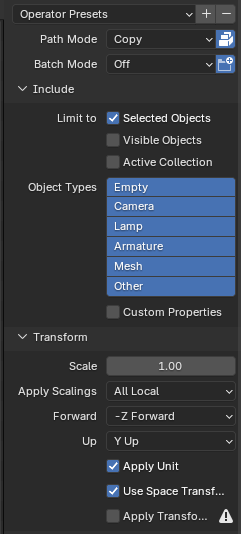
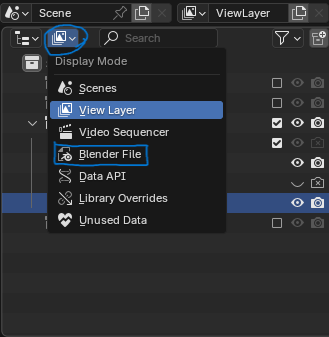
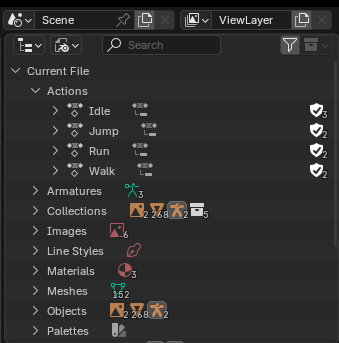
To permanently remove old Actions or any old artifacts from your Blender project simply.
1. Go to Hierarchy
2. Click the Display Mode
3. Choose Blender File
4. Browse the file you want to remove and delete.
Random notes
To permanently remove old Actions or any old artifacts from your Blender project simply.
1. Go to Hierarchy
2. Click the Display Mode
3. Choose Blender File
4. Browse the file you want to remove and delete.
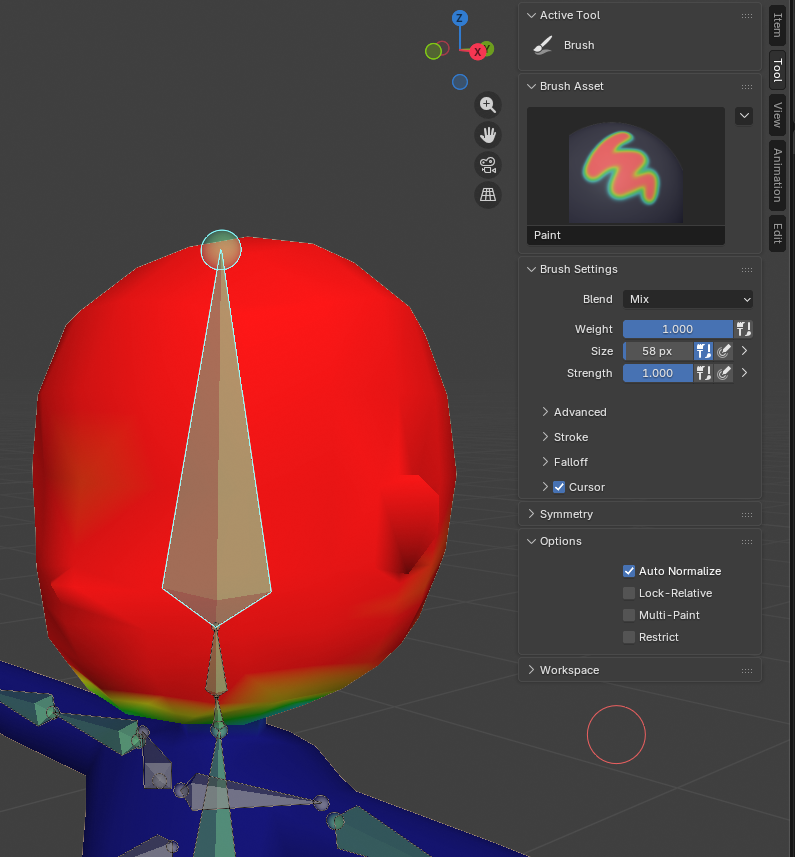
To overwrite any weight painting other bones could have:
1. N to open the menu
2. Tool tab
3. Options section
4. Auto Normalize
When exporting your model from Blender to Mixamo it usually takes a few tries if you’re a first timer.
1. Path Mode: Copy (Make sure the icon on the right is selected/lit)
2. -Z Forward, Y Up
3. If you don’t have your blender settings to pack files automatically, you have to pack files or material won’t be shown in Mixamo.